
Approve Samples
Once samples have had their results verified, they will be visible at the Approve Samples lifecycle stage.
The Approve Samples step is used to complete the sample workflow. Users can also record whether each sample has been approved or rejected before completing it.
Samples can be completed as either approved or rejected, meaning samples that have failed testing can still reach the end of the workflow whilst retaining a clear record that they were rejected.
Access to this step is dependent on the Lifecycle: Approve samples permission on your user account.
Contents
Approving Samples
To find samples for approval:
- Select the Lifecycle > Approve Samples menu from the sidebar or click on the Approve Samples icon in the header.
- Click on a job in the left list to load the job details. Jobs will be grouped by client if you have more than one client associated with your user account.
📒 You can search for jobs by ID, batch number or client to locate particular jobs.
A list of samples will be displayed for the job that has been selected.
📒 Only samples with a status of Results Verified or Completed will appear in the list of samples. All other samples will need to be progressed until they appear.
To complete a sample:
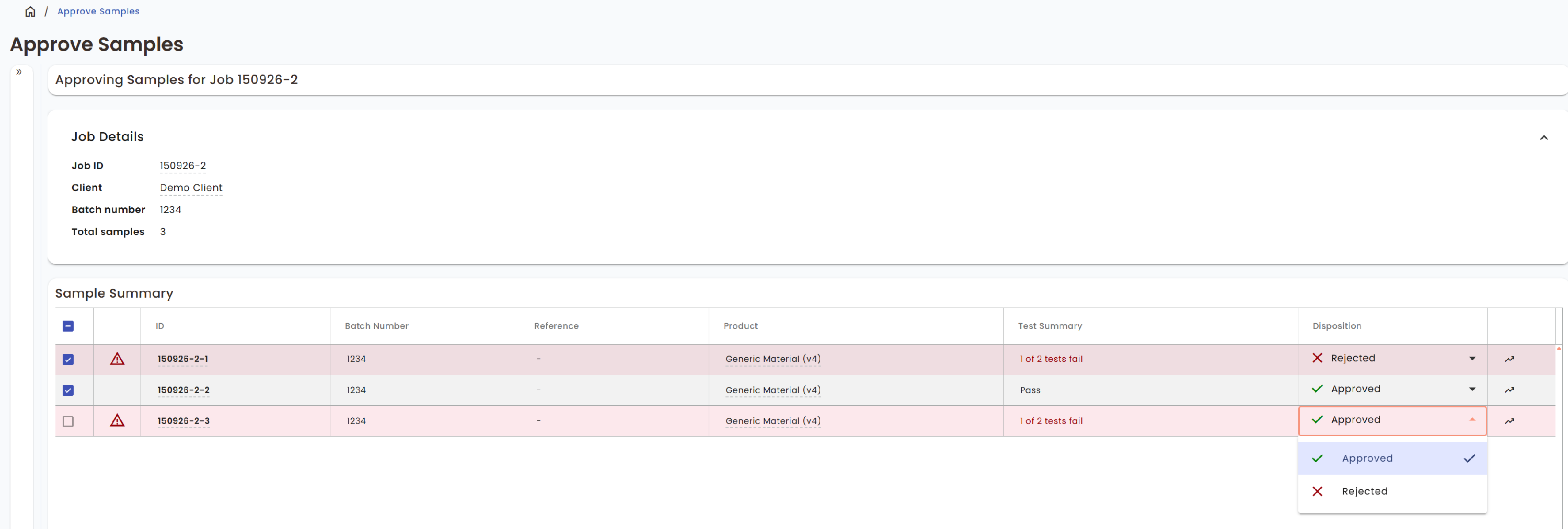
- Review the samples displayed for the selected job.
- Select a disposition for each sample:
- Approved - the sample is acceptable.
- Rejected - the sample is not acceptable, for example, one or more tests have failed or the sample does not meet specification.
- Select the checkbox next to the sample you want to complete. It is possible to complete more than one sample at a time.
- Select the [ Approve ] button to open the summary panel.
- Select the [ Approve ] button from the summary panel to complete the selected samples.
- Once completed, a green tick ✅ icon will appear next to the samples and the samples will have a status of
Completed.
Note
All samples are set to Approved disposition by default.

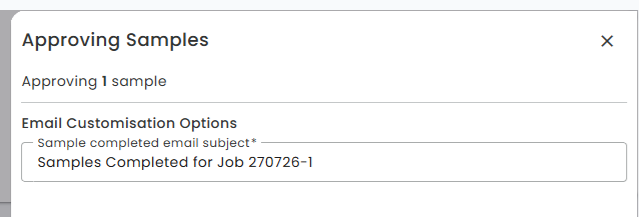
A Sample Completed email notification is sent when samples are completed. The notification lists the samples that have been completed for the selected job.
The email subject can be modified from the summary panel before completing the samples.
Failed Tests
Samples with failed tests can still be completed. If a sample should not be accepted following testing, set the disposition to Rejected and complete the sample as normal.
The sample will have a status of Completed and a disposition of Rejected.
Job Completion
Once all samples for a job have been approved, the jobs status will move to Completed .
Reverting Completion
To revert a sample that has already been completed, see here.
Reverting a completed sample does not remove its assigned disposition. If the sample is re-approved, its previous disposition will be shown and can be retained or changed.
Reporting
Manage Certificates
Certificates for the selected job and its samples can be accessed directly from the Approve Samples screen.
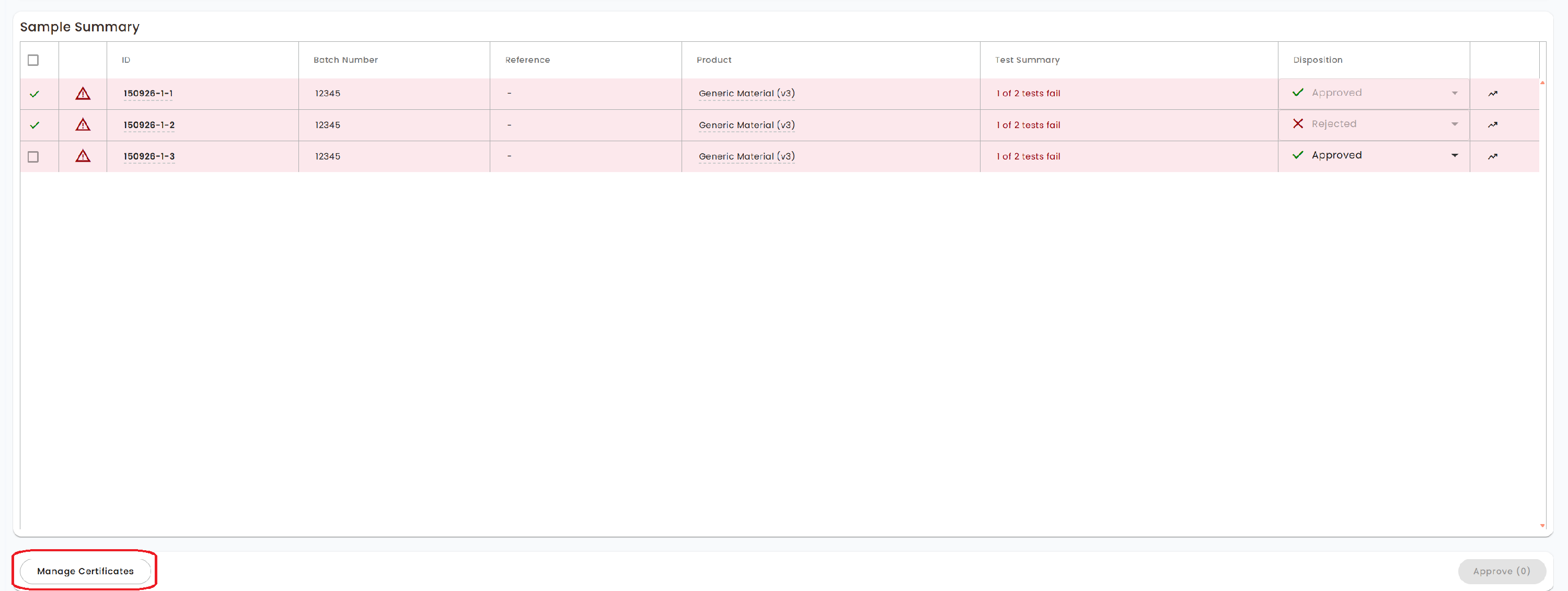
Select the [ Manage Certificates ] button at the bottom of the screen to open the certificate management window for the current job.
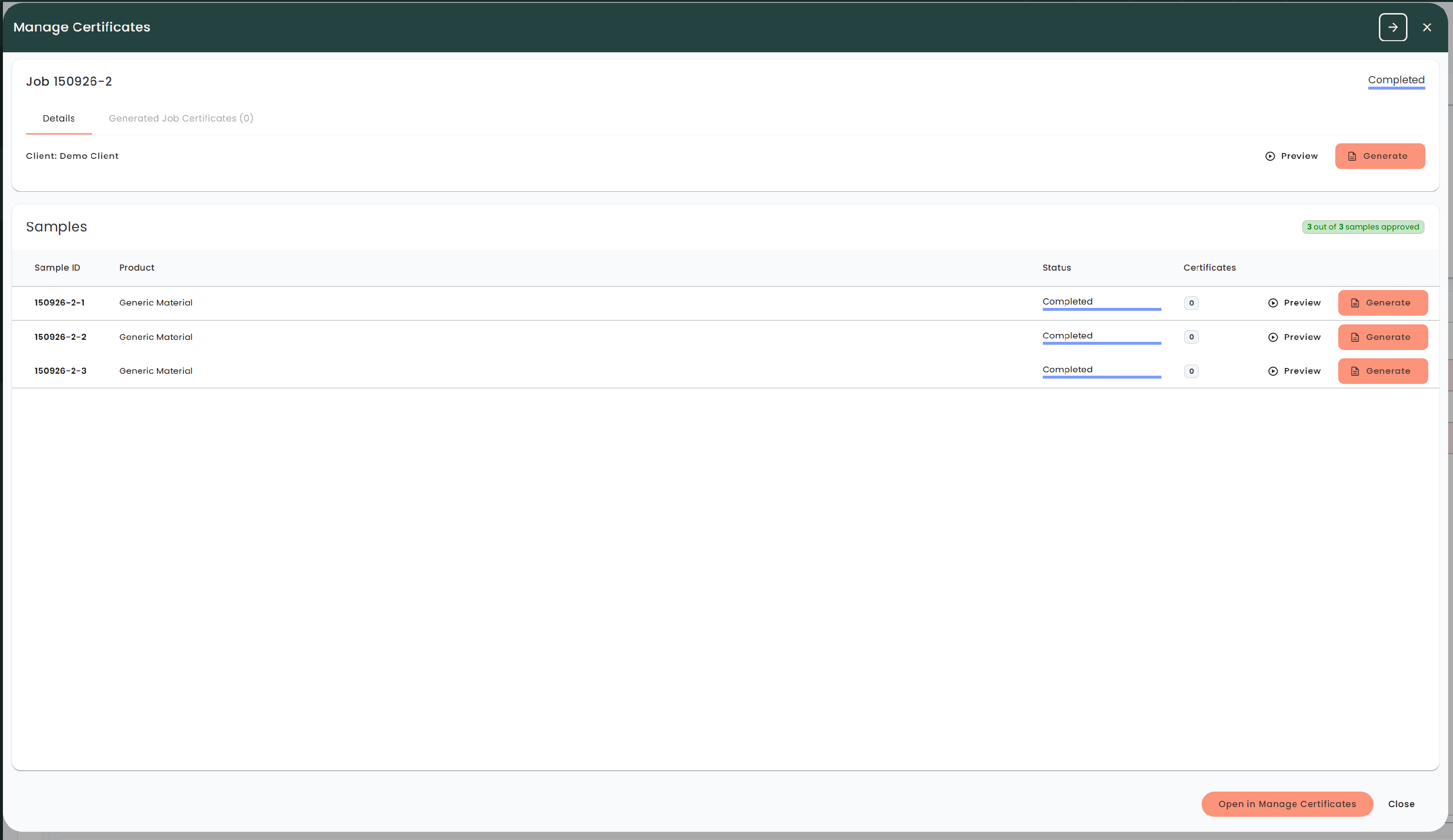
The Manage Certificates window shows the job and its samples together with their current status and certificate options.
From here you can:
- Preview a certificate before generating
- Generate a certificate once the sample has been completed
- Select Open in Manage Certificates to open the full Manage Certificates screen
A certificate can be previewed without creating a permanent certificate record. Select [ Preview ] next to the relevant job or sample to see how the certificate will look.
To create a certificate, select [ Generate ] next to the relevant job or sample. The Generate option is only available when the sample or job has been completed and is eligible for certificate generation.
Note
The Manage Certificates window provides quick access to certificates for the job you are currently reviewing. For wider certificate management and access to certificate history, open the Manage Certificates screen.
See more on managing certificates here.
Trending
⭐ This is a premium feature. Please click here for more information.
Once a sample has been completed, it is available for trending.
A quick link to the trending screen is available by clicking the 📈 icon on a completed sample row.

Automatic Stock Status Update When Sample is Approved
⭐ This is a premium feature. Please click here for more information.
When a sample is approved that is associated with a stock batch, LabHQ will automatically update the stock batch's status to reflect sample approval:
- If the sample passes all tests or there is no specification set on the sample, the stock batch status will update to "Approved"
- If the sample failed at least one test, the stock batch status will update to "Rejected".
The status change is audited under the "Stock batch sample testing completed" action.
These updates occur regardless of the batch's previous status.
Click here to read more on receiving stock batches that require testing.
Automatic Stock Status Update when a Sample is Unapproved
If a sample associated with a stock batch is unapproved, the stock batch's status is set back to "Testing in Progress". Upon re-approval, the stock batch status is re-set to "Approved" or "Rejected" based on the rules above.
This status change is audited under the "Stock batch sample unapproved" action.