
Receive Stock
⭐ This is a premium feature. Please click here for more information.
The Receive Stock feature is used to add new stock into the system. It allows you to record key details such as quantity, batch number, and expiry date, ensuring accurate and consistent inventory records.
Viewing Received Stock
A list of recently received stock can be viewed by using the Receive Stock entry in the Stock menu. This will show stock received within the last seven days.

Any stock batches that have an associated lifecycle Sample will have a link to view the sample in the Status column. Stock batches have an associated sample when it has been received with a status of "Requires Testing".
Receiving Stock
- Navigate to the receive stock screen by selecting Stock > Receive Stock from the main menu, and click the [Receive Stock] button.
- Select a stock item for the stock you are receiving.
- Enter a batch number.
- Enter the quantity of stock received.
- The unit of measure is automatically derived from the stock item.
- Select a storage location.
- Set an expiration date if applicable.
- An optional stock status can be assigned that allows you to track the usability and approval state for each batch received.
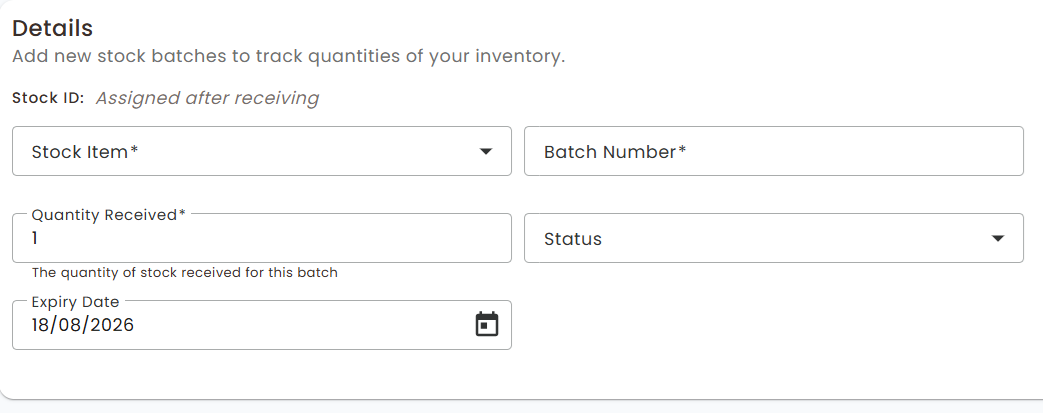
A unique Stock ID will be automatically generated after the stock is received.
Receiving Stock that Requires Testing
If you select "Requires Testing" as the stock status, an additional Testing Details section will appear.
In this section you must:
- Select a Product associated with the Internal Client.
- Select a Test Suite associated with the selected Product.
- After filling out the form, click the [Receive Stock] button to receive the stock.
When stock is received with the Requires Testing status, a lifecycle job and sample are automatically created and submitted for testing through the lifecycle process. The batch number of the job and sample is inherited from the stock batch.
The job and sample will have an initial status of Submitted and will be available for receipt at Receive Samples.
Editing Stock
You can edit the batch number, expiry date, and stock status after receiving by viewing the batch in the inventory screen:
- Navigate to the inventory screen by selecting Stock > Inventory from the main menu.
- Select a Stock Item to view the available batches.
- Select the Edit button on the batch row you wish to edit.
- Update the fields and click the [Update Batch] button.
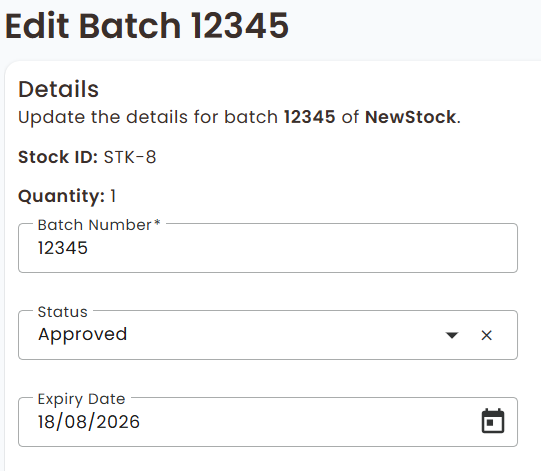
Note: Setting the status to "Requires Testing" from the Edit Batch screen does not create a lifecycle Job and Sample.