
Sample Viewer
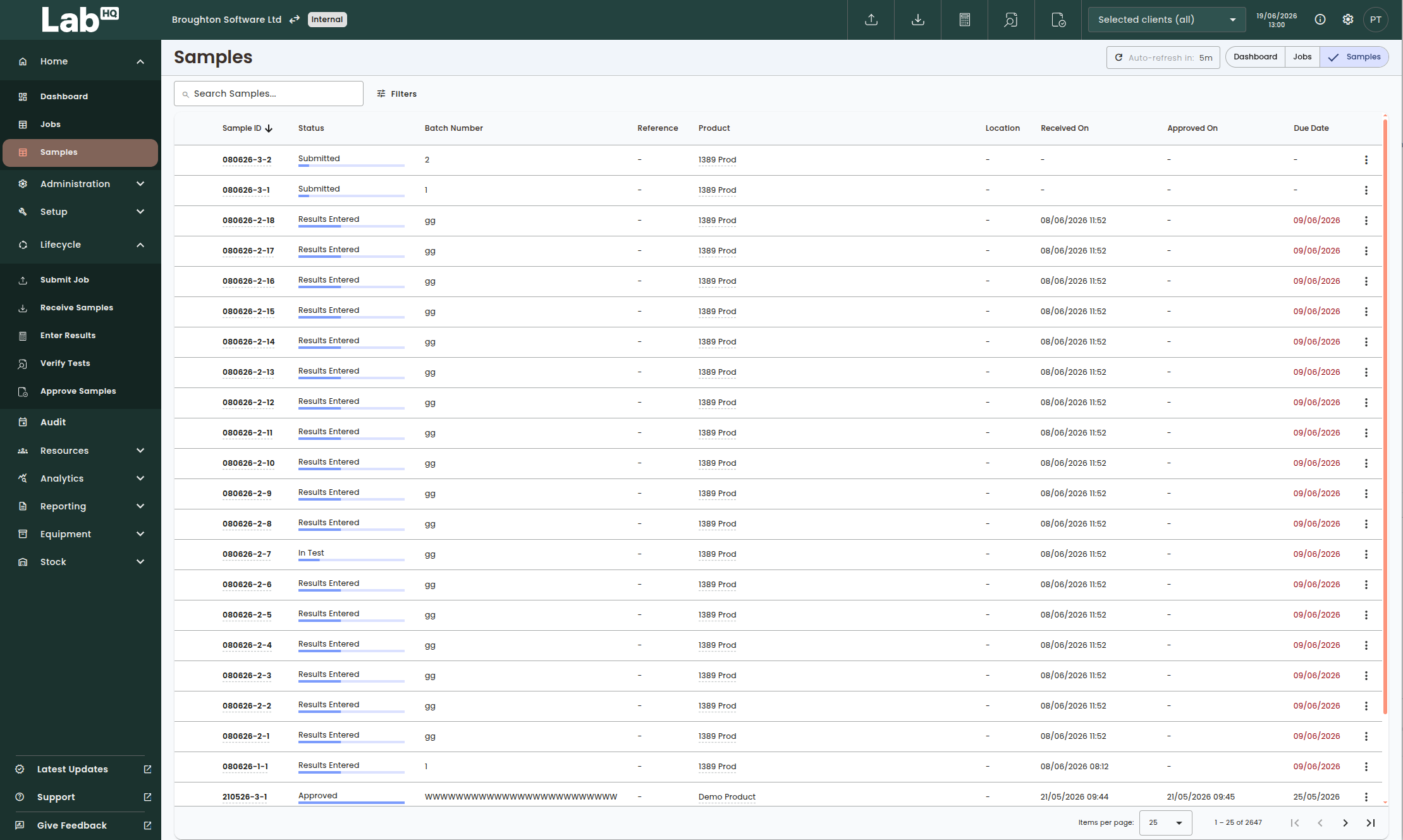
The Sample Viewer provides a central location for viewing and managing all samples within LabHQ. Samples are displayed in a searchable and filterable list, ordered by most recently submitted first.
To open the Sample Viewer:
- Navigate to the Home menu from the left navigation panel and select Samples, or
- If you are already viewing the Dashboard, you can navigate here via the Samples toggle in the top right
The Sample Viewer will load displaying all available samples.
Sample List
The main sample table displays a summary of each sample, including:
- Sample ID
- Current status
- Batch number
- Reference
- Product
- Location
- Received on
- Approved on
- Due date
Samples are ordered by the most recently submitted first.
Viewing Sample Information
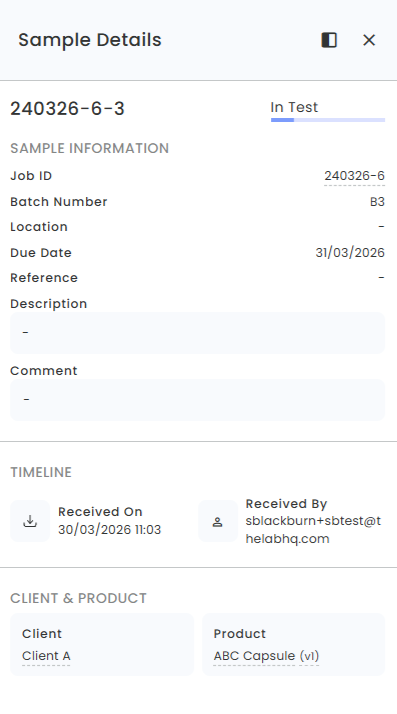
To view additional information about a sample, click on the Sample ID within the table. The Sample Details side panel will open on the right-hand side of the screen.
The Sample Details panel includes additional information, such as:
- Overarching Job ID
- Sample custom fields
- Comments
- Timeline information
- Client & product information
Opening the Full Sample View
Within the Sample Details panel, click View Full Sample to navigate to the Sample Details screen for more comprehensive information and actions.
Searching for Samples
A search box is available at the top of the Sample Viewer. The search function searches across the following fields:
- Sample ID
- Batch number
- Reference
Enter a search term into the search box and matching samples will automatically display in the table.
Filtering Samples
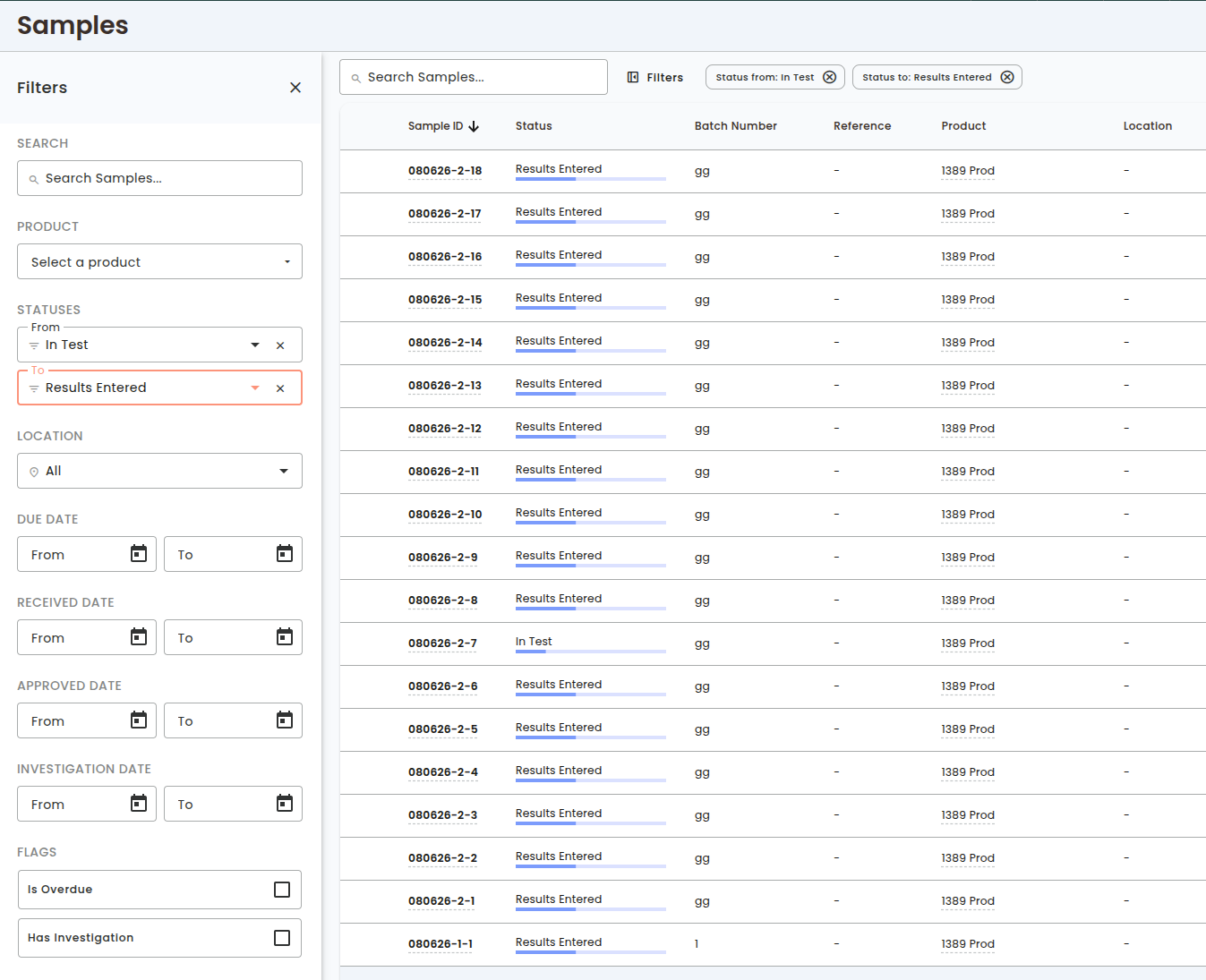
The Filters button opens a filter panel on the left-hand side of the screen, allowing you to refine the sample list.
Available Filters
The following filters are available:
- Product
- Status
- Location
- Due Date
- Received date
- Approved date
- Investigation date
- Is Overdue - displays on samples that are overdue
- Has Investigation - displays only samples with active investigations
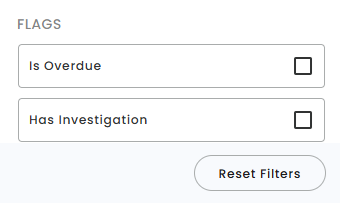
Multiple filters can be applied at the same time.
Active Filters
When filters are applied, the selected filters are displayed at the top of the samples list for easy visibility.
Users can quickly refine which filters are currently active without reopening the Filters panel.
Clearing Filters
Active filters can be cleared directly from the Filters panel or by clicking the x (clear) button next to the active filter at the top of the samples list.