Downloading Certificates from the Portal
The LabHQ Portal allows users to download job-level and sample-level certificates directly from the job and sample views. Certificates are available once the relevant approval and generation steps have been completed.
Accessing Certificates
Certificates are accessed from within the Jobs or Samples tabs in the portal.
- Click on a job or sample row in the list to expand the record.
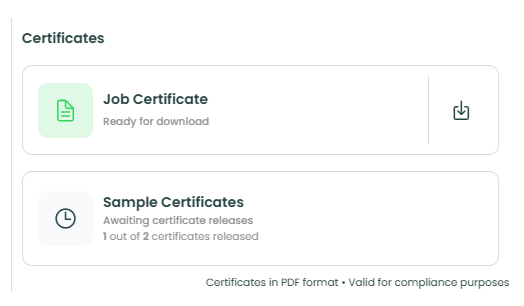
- The Certificates panel will be displayed on the right-hand side.
Available certificate download options will be shown.
Downloading Job Certificates
The Job Certificate is an aggregated report that includes all samples within the job.
Availability
The Job Certificate is only available when all samples in the job have been approved and the Job Certificate has been generated.
Downloading
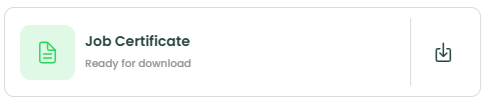
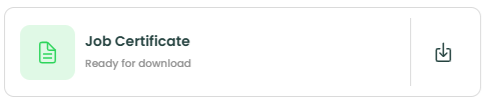
Once available, expand the job record and from the Certificates section, select the Download icon next to the Job Certificate.
If the certificate is not yet available, the status will indicate that it is awaiting release.

Downloading Sample Certificates (Bulk)
Users can download all sample certificates for a job in a single action.
Availability
Bulk sample certificate download is available when all samples in the job have been approved and all sample certificates have been generated.
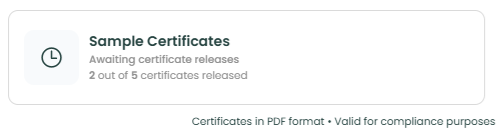
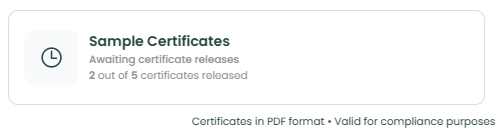
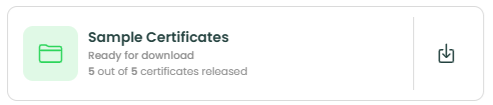
The system will display progress (e.g. "2 out of 5 certificates released") until all certificates are ready.
Downloading
Once available, expand the job record and from the Certificates section, select the Download icon next to Sample Certificates.
File Format
Certificates are downloaded as PDF files in a ZIP folder. Each PDF represents an individual sample certificate.
Downloading Individual Sample Certificates
Individual sample certificates can be downloaded from the Samples view.
Availability
A sample certificate is available when the sample has been approved and the sample certificate has been generated.
Downloading
- Navigate to the Samples tab.
- Select and expand the required sample.
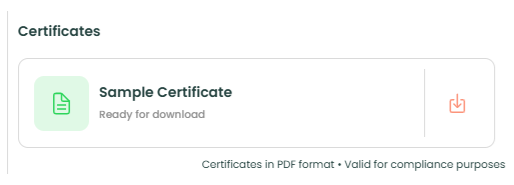
- In the Certificates section, select the Download button next to the sample certificate.
Certificate Status Indicators
The portal provides clear status messages to indicate availability:
- Awaiting certificate release - certificate not yet generated

- Ready for download - certificate is available
- Progress indicators - show how many certificates have been released so far